Claude Connectors, How to Connect Gmail, Google Tasks and Chrome Safely
Video: Claude Connectors: How I Turned Claude Into My Intern
Key takeaways
- Claude Connectors link Claude to Gmail, Microsoft mail, Google Tasks and other services so it can act instead of just advising.
- Each connector has three permission modes: Always Allow, Needs Approval and Blocked.
- Google Tasks connects through Composio, a third-party integration layer, not an Anthropic-native connector.
- Two Gmail accounts can be attached to Claude at the same time, one per connector entry.
- Claude in Chrome is a browser extension that works on paid Claude plans and covers sites without a native connector.
Claude Connectors are integrations that give Claude access to your email, calendar, task list and browser, so it can perform actions in those tools rather than only describing how to do them. You enable them from the Connectors menu inside Claude, then set a permission level for each one. Mandi Loomis of The Mandi Channel walks through the whole setup in the episode "Claude Connectors: How I Turned Claude Into My Intern" and packs the same clicks into a free Connect the Intern guide you can download and follow alongside the video.
What Claude Connectors actually change
The point of a connector is the shift from advice to execution: once Claude can see your inbox and task list, a request like "clear out the newsletters and add the bills to my to-do list" becomes a job it can finish instead of a tutorial it writes for you. Anthropic ships native connectors for Google Workspace services and for Microsoft accounts, and the same menu accepts third-party connectors built on the Model Context Protocol, which is how tools like Composio plug in.
Connectors are configured per account, not per chat. That means the access you grant once carries into future conversations, which is convenient and also the reason the permission settings deserve a real look before you start connecting things.
Finding the Connectors menu and connecting your email
Connectors live in Claude's settings, and the email connector is the first one worth turning on because so much of daily admin arrives by mail. The flow is short:
- Open the Connectors menu in Claude's settings.
- Pick your mail provider — Gmail, Microsoft, or another supported service.
- Sign in through the provider's own OAuth screen and approve the requested scopes.
- Return to Claude and confirm the account appears as a connected source.
Google's sign-in screen is where the actual consent happens, so read the scope list rather than clicking through. Anthropic documents how connector data is stored and protected on its support page for Google Workspace connectors: https://support.claude.com/en/articles/10166901-use-google-workspace-connectors — worth five minutes if you are uneasy about handing an AI your inbox.
Setting permissions: Always Allow, Needs Approval, Blocked
Every connector carries a permission setting, and this is the control that decides how much autonomy Claude gets. The three modes behave differently:
- Always Allow lets Claude take the action without asking. Fast, and appropriate for low-stakes reads like checking a calendar.
- Needs Approval makes Claude propose the action and wait for your yes. This is the sensible default for anything that sends, deletes or books.
- Blocked cuts the connector off entirely without removing it, useful when you want to pause access temporarily.
A practical pattern is to start everything on Needs Approval, watch what Claude tries to do for a week, and only promote specific actions to Always Allow once you trust the pattern. The permission layer is also the answer to the common worry about connecting Claude to Gmail: the model does not get silent write access unless you grant it.
Adding Google Tasks through Composio
Google Tasks is not covered by the native Google Workspace connector set in the same way mail and calendar are, so the workaround is Composio, a third-party integration platform that exposes Google Tasks as a connector Claude can call. You create the connection in Composio, authorize your Google account there, then add the resulting connector inside Claude's Connectors menu.
Because Composio sits between Claude and your Google account, treat its authorization screen with the same care as any OAuth grant: use the Google account you actually want tasks pulled from, and revoke the connection in Composio if you stop using it. Once connected, Claude can add, list and complete tasks, which is what turns a spoken plan into an actual checklist.
Running two Gmail accounts at once
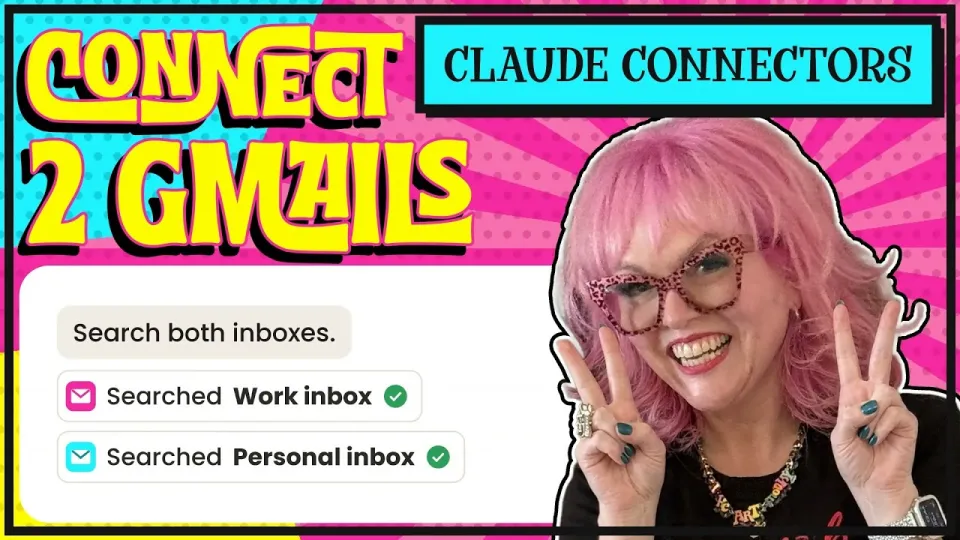
Claude can hold more than one Gmail connection simultaneously, which matters if you keep personal and work mail separate. Add the first account through the Gmail connector, then add the connector again and sign in with the second account; each appears as a separate entry you can name or identify by address. The catch is that Claude needs you to be explicit about which inbox you mean — "check my work email" only works if the connector labels make that distinction obvious. Give each connection a clear name at setup time and you avoid a class of confusing answers later.
Using Claude in Chrome when no connector exists
Plenty of the sites you use daily have no connector at all, and that is where the Claude extension for Chrome fills the gap. Install it from the Chrome Web Store (https://chromewebstore.google.com/detail/claude/fcoeoabgfenejglbffodgkkbkcdhcgfn); it requires a paid Claude plan. With the extension active, Claude can read and act on the page you have open — filling forms, pulling details from a portal, or working through a checkout flow.
Mandi's grocery example is the clearest illustration: hand Claude a recipe, let it build the ingredient list, then have it fill an online grocery cart in the browser. The same approach covers utility portals, booking pages and internal tools that will never get an official integration. Browser control is powerful, so keep the extension off on banking and anything sensitive, and enable it per task rather than leaving it running everywhere.
Useful links
- Free Connect the Intern guide (setup screenshots and examples): https://champagne-fab.kit.com/gmail?utm_source=youtube&utm_medium=video&utm_campaign=connect-the-intern&utm_content=ep003-desc
- Anthropic support: how Google Workspace connector data is stored: https://support.claude.com/en/articles/10166901-use-google-workspace-connectors
- Claude extension for Chrome: https://chromewebstore.google.com/detail/claude/fcoeoabgfenejglbffodgkkbkcdhcgfn
- Hot Butler, the free Claude Cowork setup plugin: https://hotbutlerbot.com
- Bot Shop, including the art bot: https://champagnefab.com/collections/hot-intern-bot-ai-tools?utm_source=youtube&utm_medium=video&utm_campaign=bot-shop&utm_content=ep003-desc
The bottom line
Claude Connectors are the difference between an assistant that drafts instructions and one that clears the inbox, updates the task list and fills the cart while you do something else. Start with email on Needs Approval, add Google Tasks through Composio, attach a second Gmail only if you genuinely need it, and reach for Claude in Chrome when a site has no connector. The permission settings are the safety rail, so set them deliberately rather than leaving everything on Always Allow. The Mandi Channel's episode walks the same path step by step, and the free Connect the Intern guide gives you the exact clicks to follow along.
Questions & answers
Is it safe to connect Claude to Gmail?
It can be, provided you treat the permission setting as the control that matters. Anthropic documents how connector data is stored and protected, and the OAuth grant happens on Google's own screen, so Claude only gets the scopes you approve. Keep the connector on Needs Approval until you trust the pattern, and block it when you do not need it.
Do I need a paid Claude plan to use connectors?
The Claude in Chrome extension specifically works on paid Claude plans, and connectors are managed from Claude's settings menu. Check your plan's feature list before assuming every connector is available, since access has shifted as the product has developed.
Why does Google Tasks need Composio instead of a native connector?
Google Tasks is not exposed the same way Gmail and Calendar are, so Composio acts as an integration layer that authorizes your Google account and presents Tasks to Claude as a connector. You authorize inside Composio, then add the connector in Claude.
Can Claude use two Gmail accounts at the same time?
Yes. You add the Gmail connector twice, signing into a different account each time, and both appear as separate entries. Name them clearly so requests like "check my work email" map to the right inbox.
Source: Claude Connectors: How I Turned Claude Into My Intern · Markdown version